

Just like Google for devices with the Android operating system, Apple too has created its own service through which one can locate a lost iPhone or iPad.

With Apple's device-finding service one can locate a lost iPhone or iPad
Setup – Preparing the device
To be able to use Apple's device-finding service you must first have made some settings on your device.
Usually these settings are part of the initial setup of a new device, but in case you did not complete them or skipped them when you first bought it you can complete them at any time.
The first thing you need to do is create a Apple ID and link it to your device as well.
Then, from the device's settings, you must find the iCloud field and from it find and enable the Find function (it may already be enabled).

Depending on the iOS version your device has, in the same menu you may find an option for whether you want the device to send a signal to Apple with its last location in case the battery level is very low. Remember that your device cannot be located if it is turned off, so it may be a good choice to enable this field.

How to use the Find My Device service of Apple
When you realize you have lost your device it is very important to act immediately. As quickly as you can you must visit the page iCloud.com and sign in with your Apple ID.
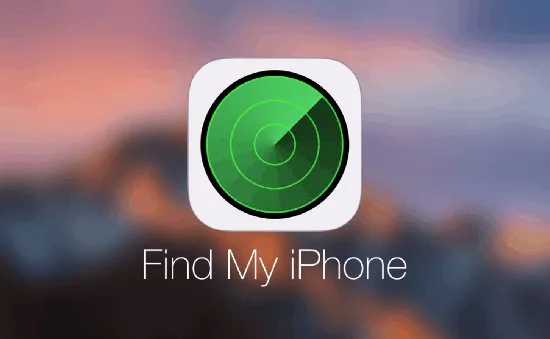
On the page you go to after signing in you must select the icon labeled Find iPhone. You may need to enter your password again.

When you select Find iPhone you will be taken to a map showing the location of all the devices you have connected to that account. Active devices are shown with a green dot and with grey the last location of devices that cannot be located (e.g. because they are turned off).

At the top of the screen (All devices) you select the device you want to locate, e.g. your iPad.
At this point 3 different options will appear for what you will do next.

The first thing you need to do is enable Lost mode. When you mark a device as lost, you can lock the device remotely with a code, and you can choose to display a message on the screen in case someone finds your device and wants to return it to you.

Once you have secured your device with a lock so that nobody can unlock and use it, you can proceed to the next step, which is to choose to play a loud sound from the device. This will happen even if the device is on silent mode, and a notification will also appear on the screen. This function is useful in the good scenario where your device has not been stolen but is somewhere nearby and you cannot find it, e.g. somewhere in the house or the office.
If even after playing a sound you cannot locate your device, then you must decide whether you can risk waiting for someone to find the device and return it to you or whether you must immediately protect your personal data by erasing the contents of the lost iPhone or iPad.

Attention: if you choose to erase the device it will no longer be possible to locate it through the Find device service of Apple.
Why Find device may not work
If you are sure that you have the Find device service enabled but still cannot locate your device, one of the following may be happening:
- The device is turned off.
Whether it has switched off because of low battery or someone has turned it off, if the device is turned off it cannot connect to any WiFi or mobile network and cannot "send a signal" for its exact location. What you see in such a case is the last position of the device recorded before it was turned off.
- The iPhone or iPad is not connected to Internet.
The Apple device-finding service requires the device we are trying to locate to be connected to internet (WiFi or mobile data). If this happens you can still see the last location of the device.
- The SIM card has been removed.
When the SIM card is removed from the device, the connection to the mobile network is lost, and therefore the connection to internet as well. If the device does not connect to some WiFi network, it cannot be located without a SIM card.
- The device's date is incorrect.
Although this is not very likely, if the device's date is wrong the device-finding service will not be able to locate the device.
- You have a very old operating system version.
Apple's Find device does not work on devices with an operating system older than iOS 5. Also if the device has iOS 6 operating system or older it may not be possible to locate it with the Find service, if whoever stole or found the device has had time to do a factory reset.
It is extremely unlikely that you have a device with such an old operating system, but we mention it in case you are looking for an old device and wonder why it cannot be located.

In some cases it is not possible to locate a iPhone or iPad device, e.g. when the device has a very old iOS version
What do I do next
If you suspect your device has been stolen and you locate it using one of the above methods, in no case try to recover it yourself or confront the thief yourself. Make an official report to the police and inform them of the situation.
And of course you must also call your provider to suspend your number. Keep in mind that once the service is cut off by the provider and data stops working, it may not be possible to locate the device, since it will not have access to the Internet.
Finally, it is wise to change the passwords on the pages and services you accessed from your mobile device (e.g. e-mail, e-banking, social media pages, etc.), and it is good to inform your business contacts and loved ones about the theft, just in case.
The main thing to remember is that, to be prepared for the loss of your device, when you buy it you must also make the necessary settings to enable the find-device feature, and also take care to secure it in some way (e.g. password, fingerprint). This way no one will be able to access your files easily and you will be able to keep them safe even if you lose the device permanently.
And of course we remind you once again to regularly keep a backup of all your important data on another device (e.g. computer) or on cloud, or even better on both.