

Losing your phone or tablet is something that stresses us all. And that is because we no longer lose only the money we paid for the device and will pay to replace it, but we also lose personal data and files stored on it.
In the case of losing a Android device, however, it is now possible to locate it through Google's Find My Device service.

Through Google's Find My Device service it is possible to locate a lost device
Setup – Preparing the device
In order for a Android device to be found through the corresponding Google service, you must first have made some settings on that device.
- You must add to your device a Google account that you have access to.
Usually the newest devices require you to add a Google account during their initial setup, so you must be sure you remember the password for it.
- You must have the Location feature turned on.
You can do this from the device's security settings menu, while Google also lets you set how accurate you want the device's location tracking to be (use of GPS, WiFi, Bluetooth).
Note that turning on Location on a device uses battery. This feature does not need to be on if you are not interested in locating your device and it is enough for you to lock it or delete your data remotely.
- You must have Find My Device turned on
Again from the device's security settings you must choose to have the find-device feature turned on.
- The device's visibility on Google Play must be turned on
Go to play.google.com/settings and make sure your device is visible in Google Play. Your device is visible by default in Google Play, but you can "hide" it if you wish.
Attention: if you hide a device in Google Play, it will not appear in Find My Device.
- The device must be connected to a WiFi network or a mobile network
From the settings menu turn on WiFi or mobile data. It is preferable for both options to be on, so that the device can stay connected to internet and can be located even when it is not connected to any known network WiFi.
Check the settings you have made
When you have finished setting up your device, it is a good idea to try to find it through Google's find-device service to be sure you have made all the settings correctly and that you will be ready in case you lose your phone or tablet.

Check that you can find your device through Google's Find My Device service to be sure you have made all the settings correctly
How to use the Find My Device service from Google
If you realize you have lost one of your Android devices, you must act immediately to have a better chance of finding it again.
The first thing you should do is find another device to sign in to your Google account. This can be a computer, or if you are with a friend you can use their phone or tablet to start the process.

As soon as you realize your device is lost, you must sign in to your Google account from another device to try to locate it
First go to the address android.com/find and sign in to your Google account. Alternatively, from android device you can use the Find My Device app Google which is available free on Play Store. Caution: if you use a friend's device, it is likely that their own Google account is signed in, so you will need to sign out of it and sign in with your own.
If you have more than one device signed in to this Gmail, select the device you want to locate.
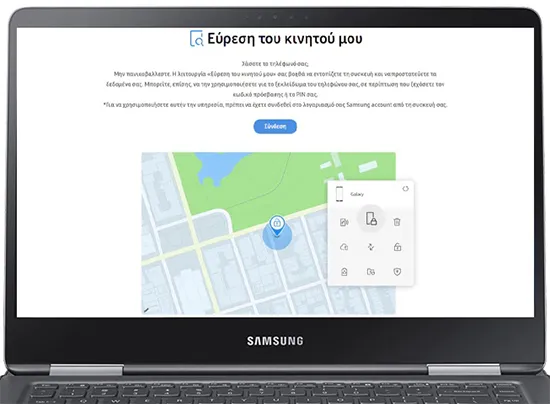
When you select your device, it will receive a notification and you will be taken to a page showing where your device is on the map. The location is of course approximate and will not show you exactly where the device is (e.g. in which room of your house) or who may be holding it. If for some reason the device cannot be located at that moment, its last known location will be shown.

On the page you are on, Google shows three options for what to do next.
The first thing you should do is lock your device. You can choose to lock the device with your pin, passcode or pattern. If you have not already set up some way of locking the device (which of course we do not recommend) you can set one up now. You can also add a message or a phone number to the lock screen, so that if someone finds the device they can contact you and return it.

After locking your device, you are given the option to play a sound on the device. This means your phone will start ringing at full volume for 5 minutes, even if silent mode or vibration is on. This option is very useful if your device is somewhere nearby but you cannot find it (e.g. between the sofa cushions).
Attention: if you have headphones connected to your phone, it is a good idea to disconnect them from the device as soon as you stop using them, because when headphones are connected to the device, the play-sound option does not work.

The last option Google gives you is to erase all the data on the device you have lost.
If you cannot hear the ringtone and, most importantly, if you see the device moving away on the map, then the safest solution is probably to erase all your data from the device. When you do this, however, you must bear in mind that it will no longer be possible to locate the device, and there is always the possibility that not everything will be erased from any memory card in the device.

If you find your device again, you will be able to use it again after entering your e-mail and password, but your files will have been erased.
What do I do next
If you suspect your device has been stolen and you locate it using one of the above methods, in no case try to recover it yourself or confront the thief yourself. Make an official report to the police and inform them of the situation.
And of course you must also call your provider to suspend your number. Keep in mind that once the service is cut off by the provider and data stops working, it may not be possible to locate the device, since it will not have access to the Internet.
Finally, it is wise to change the passwords on the pages and services you accessed from your mobile device (e.g. e-mail, e-banking, social media pages, etc.), and it is good to inform your business contacts and loved ones about the theft, just in case.
The main thing to remember is that, to be prepared for the loss of your device, when you buy it you must also make the necessary settings to enable the find-device feature, and also take care to secure it in some way (e.g. password, fingerprint). This way no one will be able to access your files easily and you will be able to keep them safe even if you lose the device permanently.
And of course we remind you once again to regularly keep a backup of all your important data on another device (e.g. a computer) or on cloud, or even better on both.